

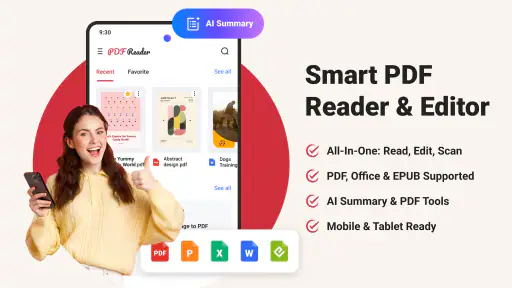
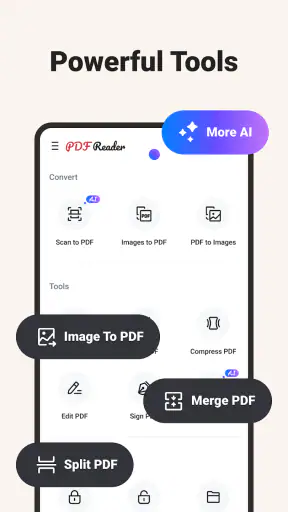
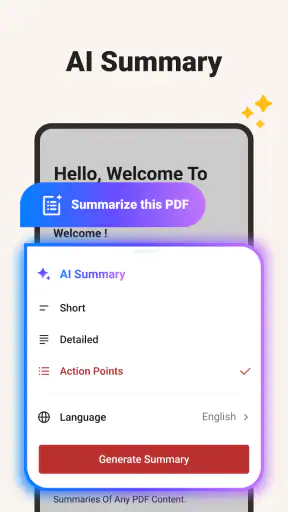
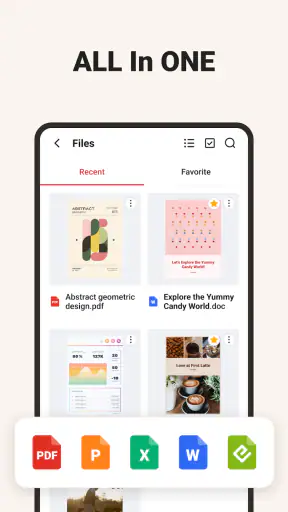
I keep running into the same small but annoying problem: a PDF arrives when I am away from my computer, and I need to read it, mark it, change its format, or capture a paper document before the moment passes. Switching between a reader, a converter, a scanner, and an editor usually takes longer than the task itself. PDF Reader – Reader & Editor is built around reducing that app-hopping. In my experience, its main appeal is not one spectacular tool, but having several practical PDF jobs gathered in one place.
This is a free tools app from Ora Tools, aimed at everyday document handling rather than design-heavy publishing. It is suitable for everyone, works on Android from version 8.1 onward, and has reached over 5 million installs. Those figures make sense when you use it for ordinary tasks: opening a document from a message, checking a form, preparing a file for sharing, or turning a quick phone scan into something easier to keep.
The real question is whether one compact utility saves enough time to justify its compromises. I think it can, especially for students, freelancers, office workers, and anyone who receives documents on a phone. However, people who need advanced desktop publishing, deep cloud workflows, or highly specialized document security may be happier with a dedicated alternative.
Where the app earns its place
The recurring PDF problem is rarely just reading
A basic PDF viewer is easy to find, but reading is often only the first step. I may need to search through a long file, adjust the view for a small screen, add a note, extract or convert content, or send a cleaner version to somebody else. If the document began as a printed page, scanning becomes part of the same job. The usefulness of this app comes from treating those needs as connected rather than separate.
That approach is particularly helpful when the document is time-sensitive. Imagine receiving a rental form while commuting. I can open it on the phone, inspect the pages, make the necessary edits, and prepare it for sending without waiting until I reach a laptop. The app does not remove the need to check the final file carefully, but it reduces the number of interruptions between receiving a document and acting on it.
Its public reception also suggests that this broad approach is working for many people: it holds a 4.1 average from around 20 thousand ratings, with more than 300 written reviews. I would not treat that score as proof that every workflow is perfect, but it does place the app in the useful, established middle ground rather than the experimental category.
My first setup focused on finding the useful path
When I first use an all-in-one document app, I do not try every tool immediately. I start by opening a few files from different sources and checking how quickly I can get from the file to the action I need. With this app, that means testing a normal PDF, a document that needs editing, a file that needs conversion, and a paper page that needs scanning.
That simple test matters because convenience is not just about the number of functions. It is about whether the next step is obvious. A crowded utility can technically do everything while still making basic jobs feel slow. I found the app most valuable when I treated it as a daily document workspace instead of searching for a single standout feature.
The current version is 4.10.8, and the app was released on July 4, 2025. On a compatible Android phone, the minimum operating-system requirement is Android 8.1, which keeps it accessible to people who are not using a recent device. If you are installing it on an older phone, I would leave enough storage available for documents and scanned pages rather than judging the app only by the installation itself.
How I would organize the first few documents
I recommend beginning with a small, low-risk file. Open a receipt, timetable, short contract, or saved instruction sheet before using the app for an important legal or financial document. This gives you a chance to learn where reading, editing, conversion, and scanning fit into the interface without pressure.
For recurring work, I would also adopt a naming habit before sharing files. A scanned document with a clear name and date is easier to find later than a series of camera-like filenames. The app can help with the document work, but it cannot replace a sensible filing routine. That distinction is easy to overlook when an all-in-one tool makes the first few steps feel effortless.
Reading is strongest when the phone is the only screen available
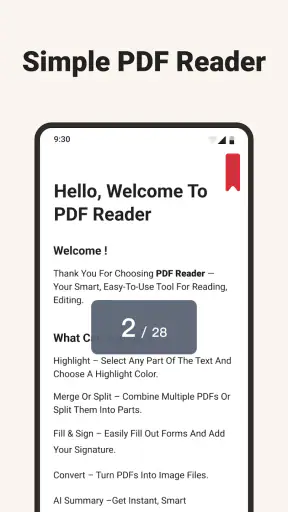
As a reader, the app is most useful in situations where opening a PDF is urgent or inconvenient on a computer. I can check a travel confirmation, review course material, inspect an invoice, or read a manual without installing a separate viewer for every source. Keeping these documents inside a familiar tool also reduces the chance of abandoning the task because the original app handles PDFs poorly.
For serious reading, I still prefer a larger screen whenever possible. A phone is fine for checking a page or finding a detail, but long reports and dense forms demand more scrolling. This is not a flaw unique to the app; it is the trade-off of doing document work on a mobile display. The advantage here is that the app lets me handle the urgent part immediately, then continue on a larger device when deep concentration matters.
Editing is useful for corrections, not a replacement for desktop layout work
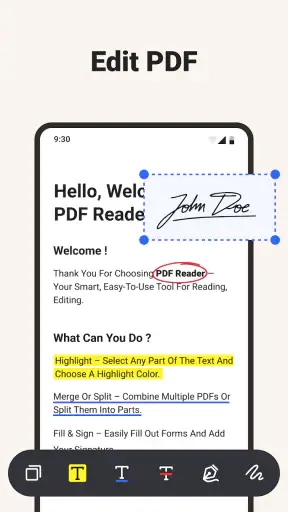
The editing side is valuable when the change is small and practical. Adding information, correcting a minor detail, or preparing a document for a quick response is exactly the kind of task that benefits from mobile access. I would use it for a form that needs a last-minute adjustment or a document that must be annotated before a meeting.
I would not choose it as my main tool for rebuilding a complicated brochure, rearranging a large publication, or managing a demanding publishing workflow. Mobile editing naturally becomes less comfortable as the number of pages and layout elements grows. The app helps remove a trip to the computer; it does not turn a phone into a full desktop production suite.
A useful habit is to make one change at a time and then review the complete document before sending it. Small-screen editing encourages quick taps, and a misplaced mark or overlooked page can matter more than the minutes saved. I see the app as a fast correction and preparation tool, not permission to skip a final inspection.
Conversion can simplify sharing, but check the result
Conversion is one of the features that makes the app more practical than a plain PDF reader. A recipient may need a different format, or I may need to work with information outside the original PDF container. Having conversion close to the reading and editing workflow means I do not have to leave the document, find another service, and start again.
The important trade-off is that conversion is not always perfectly neutral. Complex layouts, unusual fonts, tables, and image-heavy pages can behave differently after a format change. I would always open the converted file and compare its key sections with the original, especially if it is going to a client, school, employer, or official office.
For a short document, this review takes seconds and protects the main benefit of the feature. The fastest workflow is not “convert and immediately send”; it is “convert, inspect the pages that matter, then share.” That small extra step is one of the most useful lessons when using a mobile document tool.
Scanning is the feature I would use in the most ordinary emergencies
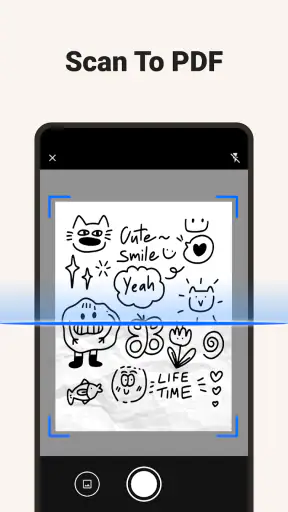
Scanning is not only for office paperwork. I can imagine using it for a signed page, a notice on a wall, a handwritten reference, or a receipt that I need to keep before it fades or gets lost. Bringing scanning into the same app as PDF reading and editing creates a straightforward chain: capture the page, prepare the file, inspect it, and send it.
The quality of a phone scan depends heavily on the situation. Good lighting, a flat page, and a steady camera position matter more than people expect. A shadow across a signature or a curled corner can make an otherwise successful capture difficult to read. I would take a moment to align the page and check the edges rather than assuming the first capture is ready.
This is also where the app can save more time than a separate scanner application. If I already have the document open and know where it needs to go, avoiding another import step is meaningful. For occasional scanning, that convenience is more important than having every specialized scanning control found in a dedicated app.
A realistic everyday workflow
Consider a student who receives a multi-page assignment brief as a PDF, needs to review the requirements during a bus ride, and later has to submit a signed page. The student can read the brief on the phone, make a note about an important instruction, scan the signed sheet, and prepare the document for sending from the same general workspace. The value is not that each action is unusually advanced; it is that the student does not have to remember which separate app handles each stage.
Another example is a small business owner who receives a supplier document while working away from the desk. They can check the figures, make a limited correction or annotation, convert the file if the recipient needs another format, and review the result before sharing. For this kind of short, interrupted work, reducing context switching is a genuine advantage.
What friction the all-in-one design removes
The biggest improvement is mental rather than technical. I do not have to decide whether a document belongs in a reader, scanner, editor, or converter before I begin. I can start with the file in front of me and choose the next action afterward. That is especially helpful when a message arrives with little explanation and I need to discover what the document requires.
It also reduces duplicate handling. Moving a file between several apps can create extra copies, confusing names, and uncertainty about which version is final. Keeping the stages closer together makes it easier to follow the document’s progress. I still recommend saving or sharing deliberately, but the workflow feels less fragmented than using unrelated single-purpose tools.
The app is free to install, which makes it easy to try for occasional document work. There are in-app purchases ranging from $3.99 to $89.99 per item, so anyone who plans to rely on premium capabilities should pay attention to the purchase screen before committing. I would not assume that every useful tool is included without charge, and I would decide based on how often the app replaces other software in my routine.
Where dedicated alternatives remain better
A dedicated PDF reader may be preferable if your only need is fast viewing and you want the simplest possible interface. A specialized scanner can be a better fit for frequent, high-volume captures where image cleanup and batch handling are central. Likewise, a desktop editor is the stronger choice for complex layouts, extensive revisions, or work that must be precisely controlled on a large screen.
The advantage of this app is breadth, not necessarily maximum depth in every individual category. I would recommend it to someone who values a single mobile toolbox. I would steer a professional document team toward a more focused solution if collaboration, formal approval steps, or strict document-management routines are essential to their work.
There is also a reliability habit worth adopting: keep the original file until the edited, converted, or scanned version has been checked. Convenience can encourage people to overwrite or share too quickly. The app makes the process shorter, but a short process still needs a safety net when the document is important.
Who should install it, and who should skip it?
I think it is a strong match for people who regularly receive PDFs on Android and need more than reading. Students can use it for study material and forms; travelers can handle confirmations and paperwork; freelancers can make quick document adjustments away from a desk; and households can keep occasional scans from becoming a separate project.
I would skip it if you almost never work with PDFs, if you already have a trusted document suite that covers every need, or if your work depends on advanced formatting and large-screen precision. Adding another app is not automatically an improvement. Its value appears when the combination of reading, editing, conversion, and scanning removes repeated small delays in your day.
My final judgement on the time saved
PDF Reader – Reader & Editor succeeds because it targets the annoying gaps between simple document tasks. It lets me move from opening a file to preparing it for use without constantly changing tools. The experience is most convincing for short, practical jobs where speed and availability matter more than specialist controls.
It is not the answer to every PDF workflow, and I would be careful with important files: inspect conversions, review edits, and keep originals until the final version is confirmed. Those limitations are reasonable for a mobile utility that tries to cover several jobs in one place.
With an Everyone content rating, a free starting point, and support for Android 8.1 and later, it is accessible enough to test without much commitment. After using it, my recommendation is straightforward: install it if you want a dependable general-purpose PDF toolbox on your phone, especially when your recurring frustration is not reading a document but figuring out what to do with it next. Its best feature is the time it saves between those steps.


